These are my lab notes from the Okta Professional Certification hands-on track. This lab builds on the IAMShowcase SAML integration — the app is already wired up, now the focus is on attribute flow.
The exam skill this maps to:
Define attribute mappings to push attributes from Okta to an application.
Maps to exam: Part II — Attribute Mapping and Offboarding (20%) · See the full lab map on the Okta Professional Cert Study Map or the official study guide.
Lab Setup
Use the existing real SAML app: CERT Real SAML Test SP
Test user: cert.employee1
Step 1 — Confirm User Profile Values
Directory → People → cert.employee1 → Profile
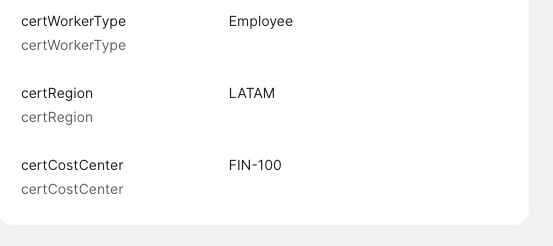
Verify these custom attributes are populated:
| Attribute | Value |
|---|---|
certWorkerType | Employee |
certRegion | LATAM |
certCostCenter | FIN-100 |
If certCostCenter is blank, add FIN-100 and save.
Step 2 — Confirm SAML Attribute Statements
Applications → CERT Real SAML Test SP → General → SAML Settings → Edit
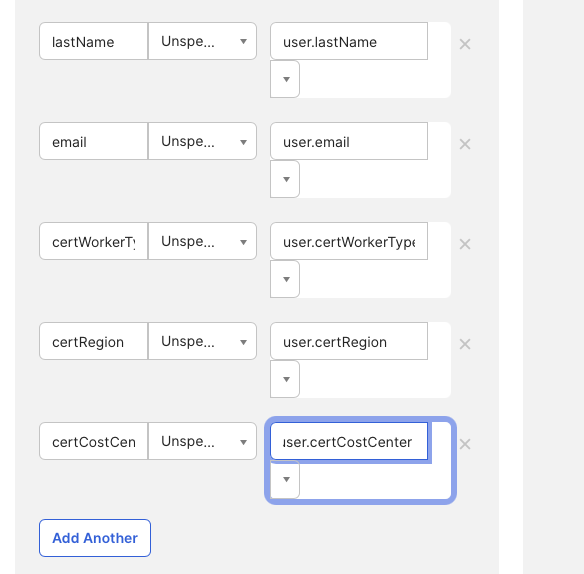
Confirm or add all six attribute statements:
| SAML Attribute Name | Value |
|---|---|
firstName | user.firstName |
lastName | user.lastName |
email | user.email |
certWorkerType | user.certWorkerType |
certRegion | user.certRegion |
certCostCenter | user.certCostCenter |
Save.
Step 3 — Test the Assertion
Open a private browser. Sign in as cert.employee1 and launch CERT Real SAML Test SP.
In IAMShowcase, verify the assertion contains the custom values:
certWorkerType = Employee
certRegion     = LATAM
certCostCenter = FIN-100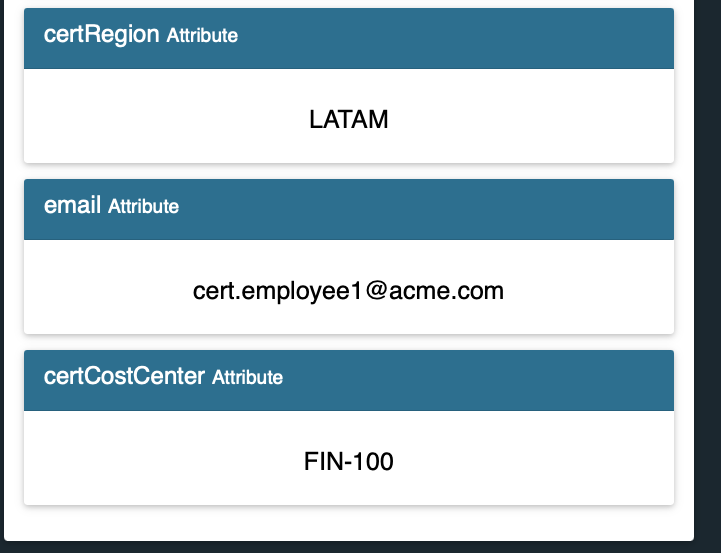
Step 4 — Dynamic Attribute Test
Back in Okta Admin, change cert.employee1 → certRegion to EMEA. Save.
Launch the app again in a private browser.
Expected: the assertion now shows certRegion = EMEA.
Okta generates the assertion at runtime from the current profile — the attribute value is not cached. Change it back to LATAM when done.
Step 5 — Break/Fix Drill
Remove the certRegion attribute statement from the app’s SAML settings. Launch the app again.
Expected: IAMShowcase no longer shows certRegion in the assertion.
Add it back: certRegion = user.certRegion. Verify it reappears.
This is the fastest way to internalize the relationship between attribute statements and assertion output.
Step 6 — System Log
Reports → System Log → search cert.employee1
Look for this event chain:
| Event | Meaning |
|---|---|
user.account.update_profile | Attribute source changed |
policy.evaluate | Auth/app policy matched |
user.authentication | User authenticated |
app.saml | Assertion released to SP |
Success Criteria
You’re done when you can demonstrate:
cert.employee1’s profile has custom attribute values.- The SAML assertion at IAMShowcase reflects those values.
- Changing
certRegionin Okta changes the assertion output on next launch. - Removing an attribute statement removes it from the assertion.
- Adding it back restores it.
Exam Sentence
Okta profile attributes can be passed to applications through SAML attribute statements. If the user profile value changes, the app receives the updated value when the assertion is generated — Okta does not cache the assertion between sessions.